WordPress Calculator Builder: Add a Calculator to Your Website
Turn a WordPress page into an interactive experience. Create a pricing, quote, or savings calculator with AI or the visual builder, then copy the embed code and paste it into WordPress — no Calcopolis plugin required.
Works with WordPress pages that allow custom JavaScript embeds.
See a Calculator Embedded on a WordPress Page
This is how a service business can let visitors explore an estimated price without leaving its website. Choose a service package, change the project size, and add extras to see the estimate update.
BUILD THE CALCULATOR FIRST
Describe What You Need. Let AI Help You Build It.
You don't have to program a calculator for WordPress. Tell Calcopolis what you want it to calculate, review the result, and refine the fields, formulas, and design in chat or the visual editor.
- Start with a prompt — Describe your services, input fields, and pricing rules in plain English.
- Refine through chat — Ask AI to add an option, change a calculation, or adjust the layout.
- Fine-tune visually — Check the calculator preview and edit fields or styling before embedding it.

How to Add a Calculator to WordPress in Three Steps
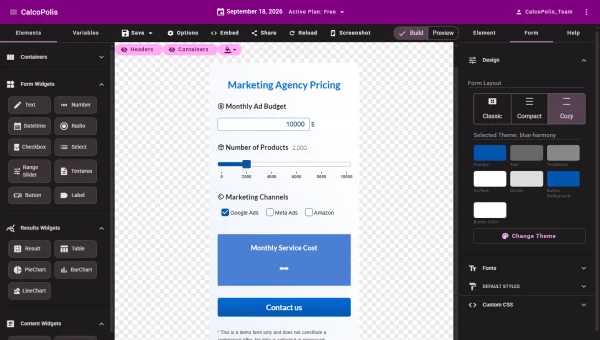
Create Your Calculator in Calcopolis
Start with an AI prompt or the visual editor. Add your questions, formulas, results, and design, then publish the calculator when it's ready.
Copy the Embed Code
Open the published calculator's embedding/publishing options and copy the generated code snippet. You don't need to write or modify the JavaScript yourself.

Paste It Into WordPress
Edit the WordPress page or post, insert a Custom HTML block, paste the complete snippet, and update or publish the page. Open the public page to check that the calculator loads and works.
Give Your WordPress Website More to Do Than Display Information
Help Visitors Get Answers Immediately
Let visitors calculate a price, compare options, or estimate savings directly on the page where they are considering your offer.
Turn Engagement Into Useful Inquiries
Add contact fields to a calculator when you want to collect requests with the visitor's chosen options and calculation details.
Keep Your Website Easy to Maintain
Build and manage calculator logic in Calcopolis rather than implementing a custom pricing tool inside your WordPress theme.
Everything You Need to Put a Calculator on WordPress
SIMPLE EMBEDDING
Paste One Generated Snippet Into WordPress
Calcopolis gives you embed code for your published calculator. Add it to a WordPress Custom HTML block, place the block where the calculator belongs, and keep the rest of your page in the familiar WordPress editor.
- No dedicated Calcopolis WordPress plugin to install.
- Place the calculator in a page or post that accepts the script embed.
- Keep surrounding headings, text, and calls to action in WordPress.
RESPONSIVE EXPERIENCE
Make It Useful on Desktop and Mobile
A calculator needs to work where your visitors browse. Customize its layout and design in Calcopolis, then check the embedded experience on your WordPress site's desktop and mobile views before launching.
- Configure the calculator for different screen sizes.
- Preview and test inputs on a phone-sized viewport.
- Match colors and presentation to your website's style.
CENTRALIZED EDITING
Update the Calculator Without Rebuilding the Page
When your offers or pricing rules change, edit the calculator in Calcopolis. Your WordPress page can keep the same embed snippet while displaying the updated published calculator. You don't need to rebuild the surrounding page for every change.
- Change fields, options, and calculations in Calcopolis.
- Keep calculator management separate from WordPress content editing.
- Check the live embedded result after publishing an update.
What Kind of Calculator Can You Add to WordPress?
Service Pricing Calculator
Let customers choose packages, quantities, and add-ons to understand an estimated service price. See also the Pricing Calculator Builder.
Instant Quote Calculator
Collect project details and give visitors a useful estimate before they request a personalized quote. See also the Quote Calculator Builder.
ROI or Savings Calculator
Help prospects estimate the potential value of a service directly on the page describing it. See also the ROI Calculator Builder.
Where Exactly Do You Paste the Code in WordPress?
You don't need to edit your theme or write JavaScript. Calcopolis generates the snippet; WordPress provides the place to paste it.
- Open your page or post. In the WordPress dashboard, go to Pages or Posts and choose Edit for the content where you want the calculator.
- Insert the Custom HTML block. Click the + block inserter, search for Custom HTML, and add it at the position where the calculator should appear.
- Paste and publish. Select Edit HTML if needed, paste the entire embed snippet copied from Calcopolis, save the block, then Update or Publish the page. Visit the published page and test the calculator there.
The snippet is generated for you in Calcopolis. Just copy and paste it — no manual coding required.
Frequently Asked Questions About WordPress Calculators
How do I embed a calculator in WordPress?
Build and publish a calculator in Calcopolis, copy its embed code, and paste it into a WordPress Custom HTML block. Update your page and test the calculator on the live site.
Do I need to install a WordPress calculator plugin?
No dedicated Calcopolis WordPress plugin is required. The calculator is embedded using a generated JavaScript snippet. Your WordPress setup must allow custom scripts.
Can AI build a calculator for my WordPress site?
Yes. Describe the calculator you need in Calcopolis AI Chat, then review and refine its fields, formulas, and design using chat or the visual editor. Embed it in WordPress when it's ready.
Can I change the calculator after adding it to WordPress?
Yes. Edit the calculator in Calcopolis and publish your changes. With the same live embed in place, you can update the calculator without rebuilding your WordPress page.
Will the calculator work on mobile devices?
Calcopolis supports responsive calculator layouts. Preview the calculator and test it on desktop and mobile after embedding, since the surrounding WordPress theme also affects how the page looks.
Does embedding work on WordPress.com and self-hosted WordPress?
It works on WordPress sites that permit custom JavaScript. On self-hosted WordPress, the ability to save script code depends on your permissions and security settings. WordPress.com restricts script embeds on some plans; check whether your plan supports custom code before publishing.
Ready to Add an Interactive Calculator to WordPress?
Build it with AI or the visual editor, copy the embed code, and place it on your WordPress site. Give visitors a useful answer without sending them away from your page.
No dedicated Calcopolis WordPress plugin required.