Goal
When a visitor clicks Submit, save their email and message as a lead you can review in Calcopolis.
Try it yourself
Steps
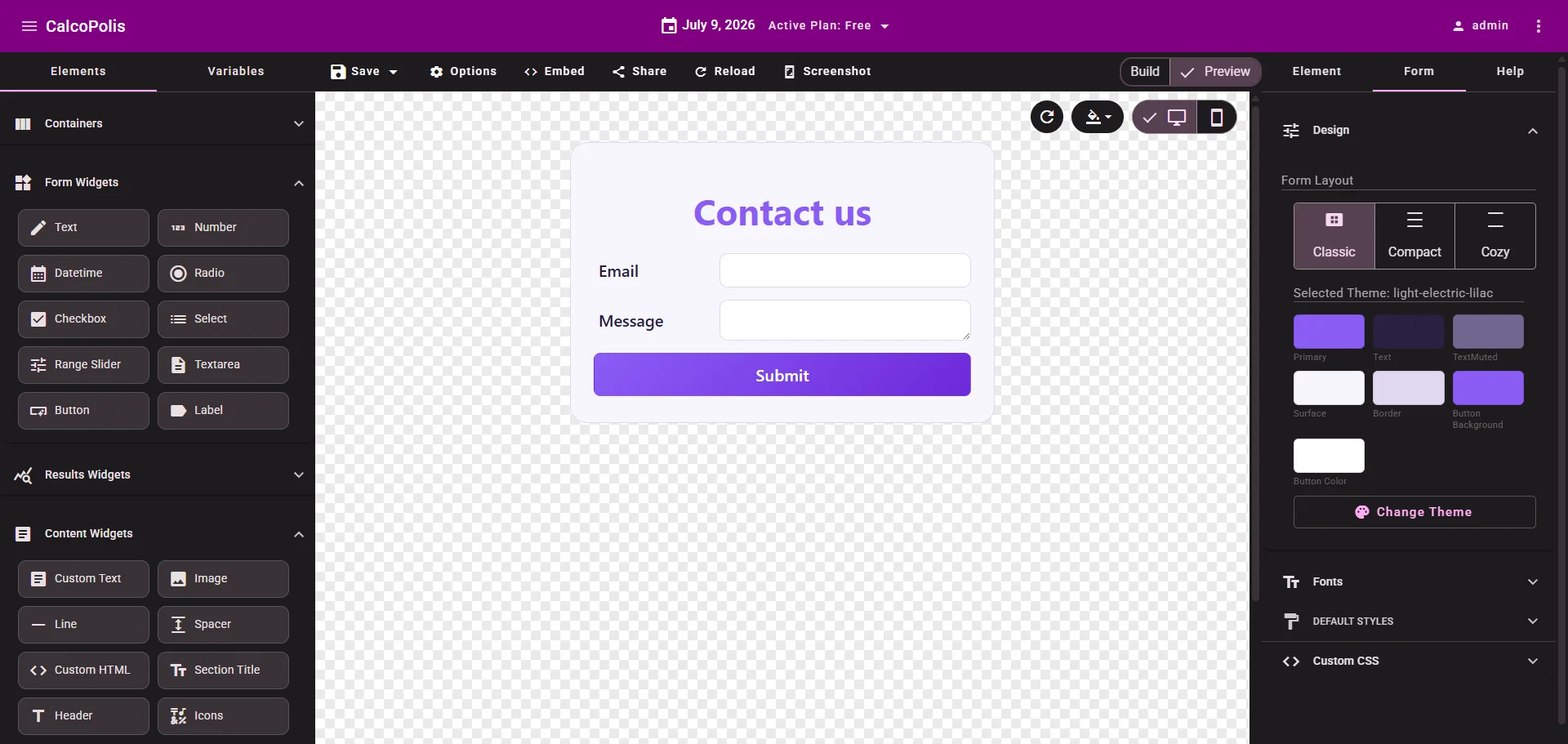
1. Add the form fields
Open your project in the builder (or create a New Form). From the Elements sidebar, add:
| Widget | Settings |
|---|---|
| Text | Name: email · Label: Email · Type: email |
| Textarea | Name: message · Label: Message |
| Button | Button Text: Submit |
Use the Name values above — the Save Lead action maps to them in a later step.
2. Require a valid email
Select the Email field. In the Element tab, expand Validation:
- Required →
Required - Type →
Valid email
This prevents empty or malformed addresses from being submitted.
3. Add the Save Lead action
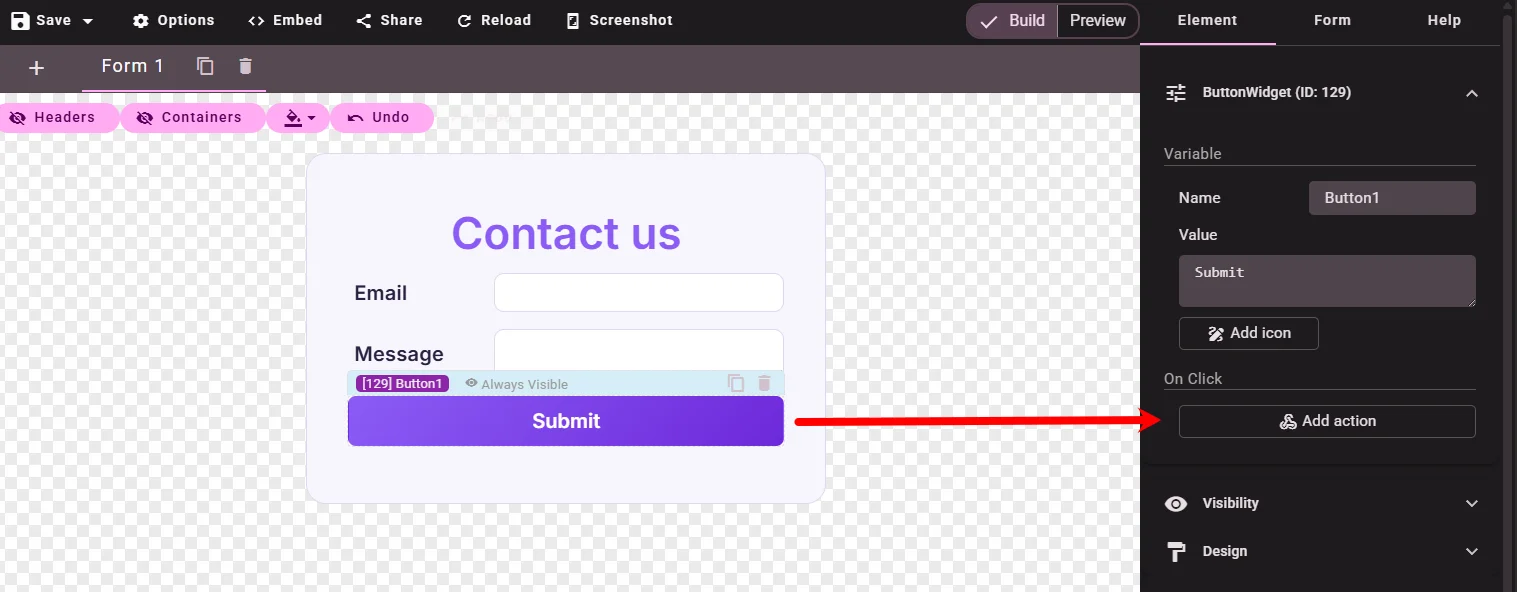
- Select the Submit button.
- Under On Click, click Add action.
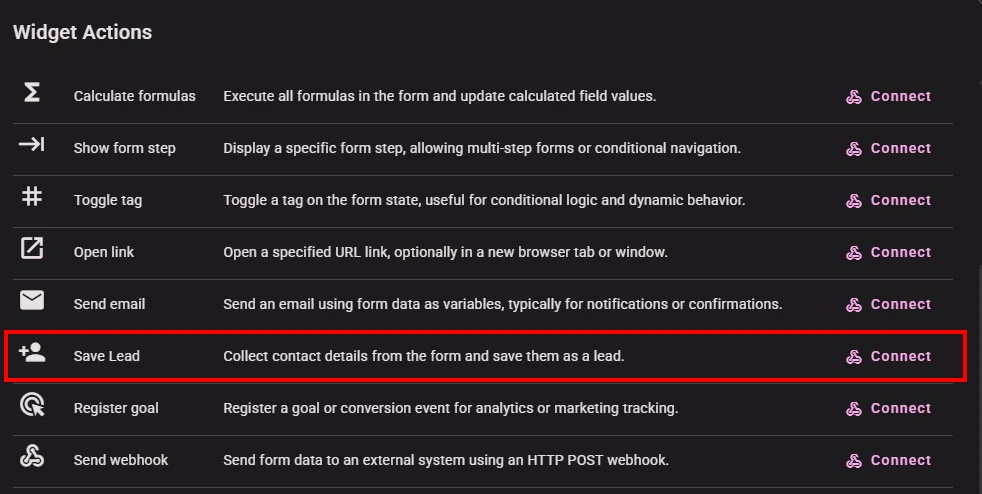
- In the Widget Actions dialog, find Save Lead and click Connect.
The action appears in the button’s On Click list.
4. Map lead fields to your form
- Click the settings icon next to Save Lead on the button (or open Save Lead from the actions dialog).
- On the Setup tab, map only the fields you need:
| Lead property | Map to variable |
|---|---|
email |
|
| Message | message |
Leave other properties (phone, name, address, …) unmapped — they are optional.
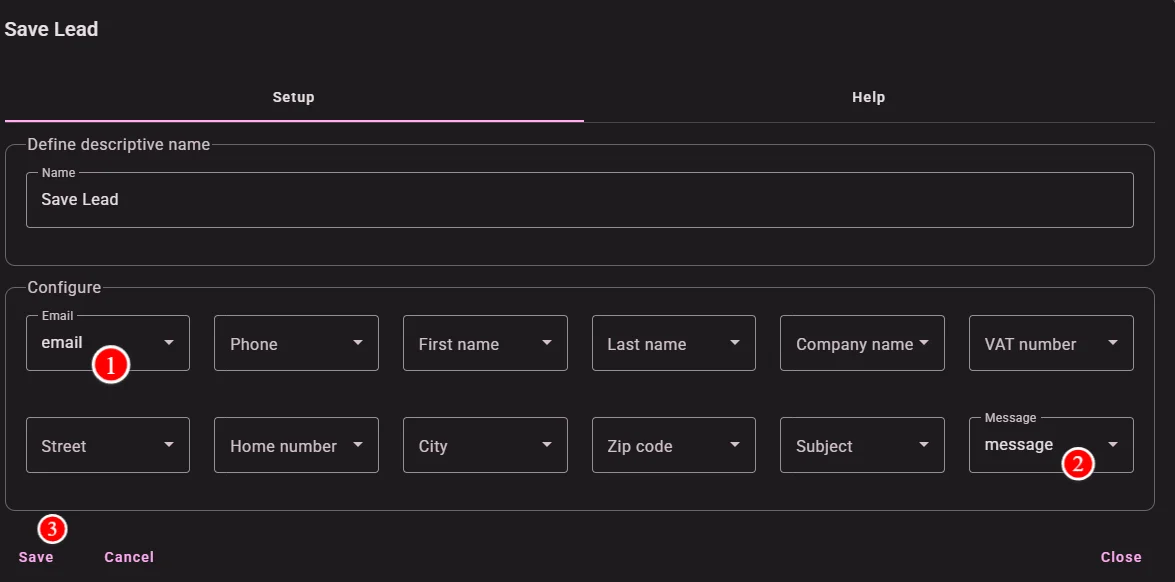
Close the dialog and click Save → Save Draft.
5. Test in Preview
- Switch to Preview.
- Enter a valid email and a short message.
- Click Submit.
Verify
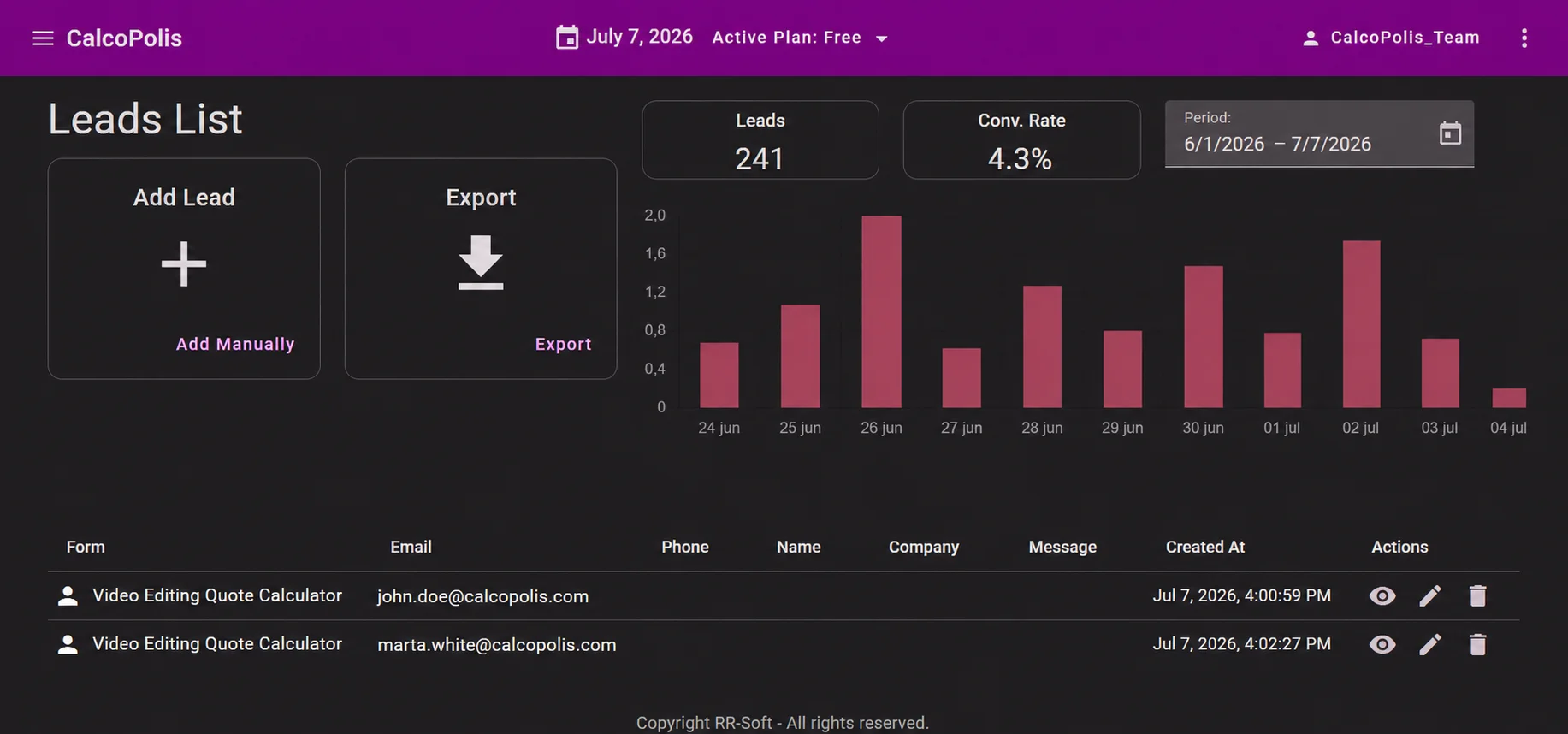
- From the main menu, open Leads.
- Find the new entry — it should show the email and message you entered.
To capture leads on a live website, publish the form (Save & Publish) before embedding.
Troubleshooting
| Problem | Solution |
|---|---|
| Lead not saved | Confirm Save Lead is on the Submit button’s On Click list. Save the project after configuring the action. |
| Email field empty in Leads | Map Email → email in Save Lead setup. Check the Text widget Name is exactly email. |
| Message missing | Map Message → message. Check the Textarea Name is message. |
| Submit does nothing | Use Preview after saving. Test with a valid email format. |
| No leads on embedded form | Publish first (Save & Publish), then test the embedded calculator on your site. |
See also
- Building Your First Calculator — multi-step flow with Save Lead and Show Form
- Button — On Click actions reference
- SAVE_LEAD Command — full list of mappable lead properties