Goal
Build a Project Cost Calculator that stays simple for most visitors, but reveals extra costs and discount fields in Advanced mode — and shows a hint when the project value crosses $2,000.
How it works
| Pattern | Use when |
|---|---|
| View Mode | Show or hide whole fields (e.g. Advanced-only inputs) |
| Formula visibility | Show a message when a numeric condition is true (evaluated on Calculate) |
Part 1 — Project Cost Calculator (Basic vs Advanced)
1. Add the title and mode selector
From the Elements sidebar:
| Widget | Settings |
|---|---|
| Header | Text: Project Cost Calculator |
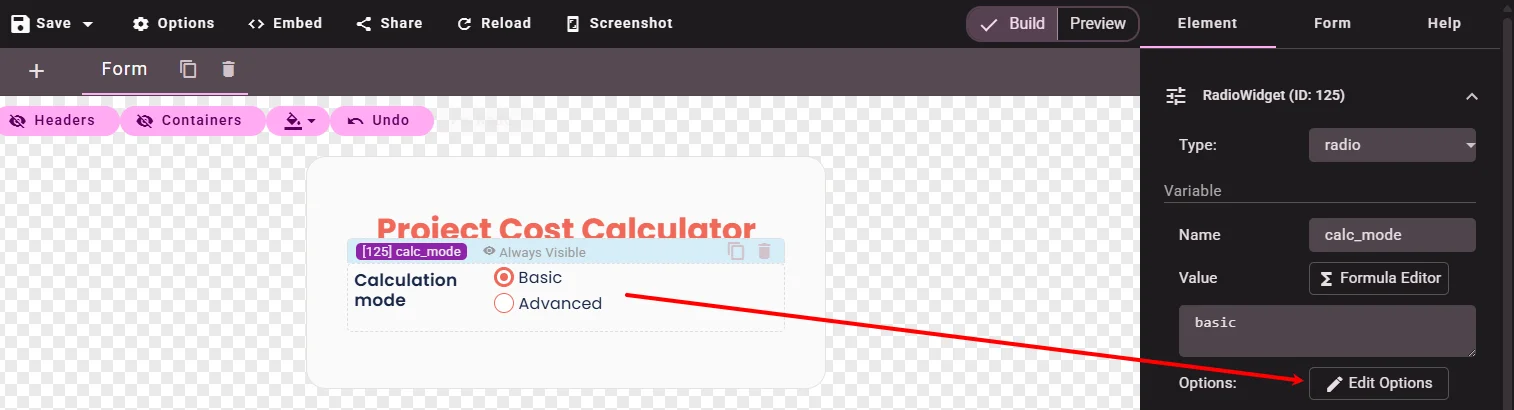
| Radio | Name: calc_mode · Label: Calculation mode · Value: basic |
Click Edit Options on the radio:
| Label | Value |
|---|---|
Basic |
basic |
Advanced |
advanced |
The Value column becomes the View Mode name — use lowercase, no spaces.
2. Add shared inputs
Add two Number widgets (visible in both modes):
| Name | Label | Value | Suffix |
|---|---|---|---|
hours |
Number of hours |
40 |
h |
hourly_rate |
Hourly rate |
50 |
USD |
3. Add Advanced-only inputs
Add two more Number widgets:
| Name | Label | Value | Suffix |
|---|---|---|---|
extra_costs |
Extra costs |
0 |
USD |
discount_percent |
Discount |
0 |
% |
4. Switch View Mode when the mode changes
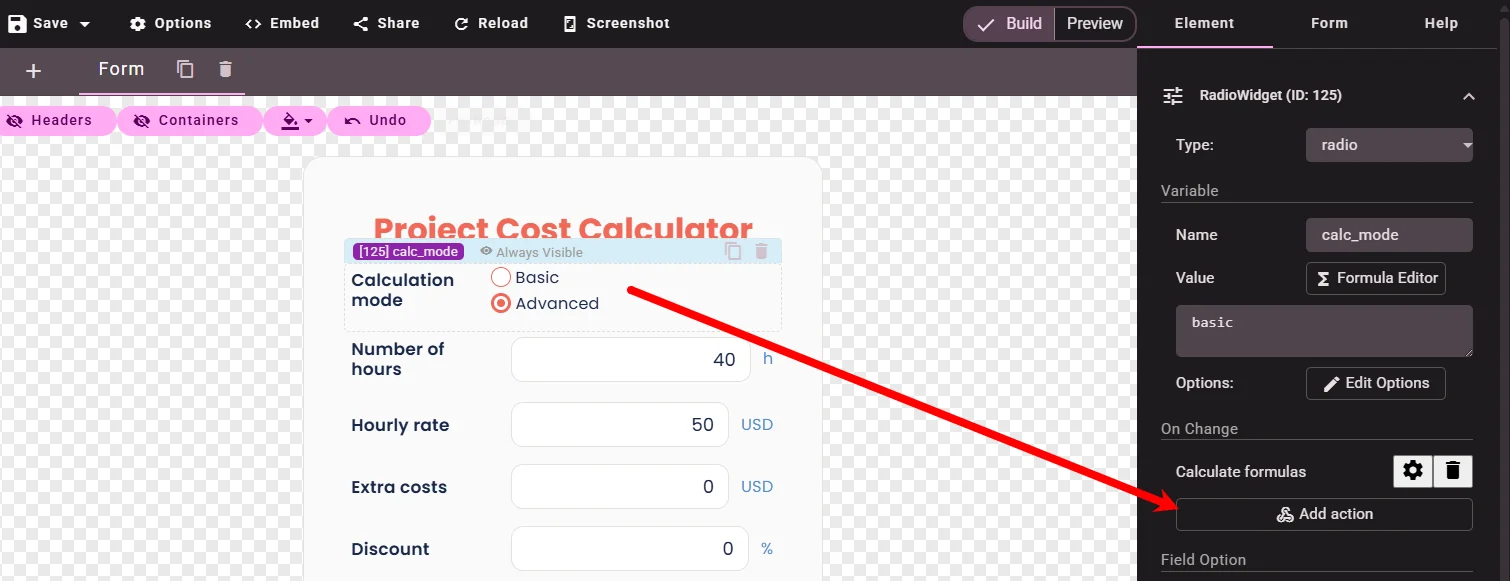
- Select the Calculation mode radio.
- Under On Change, click Add action.
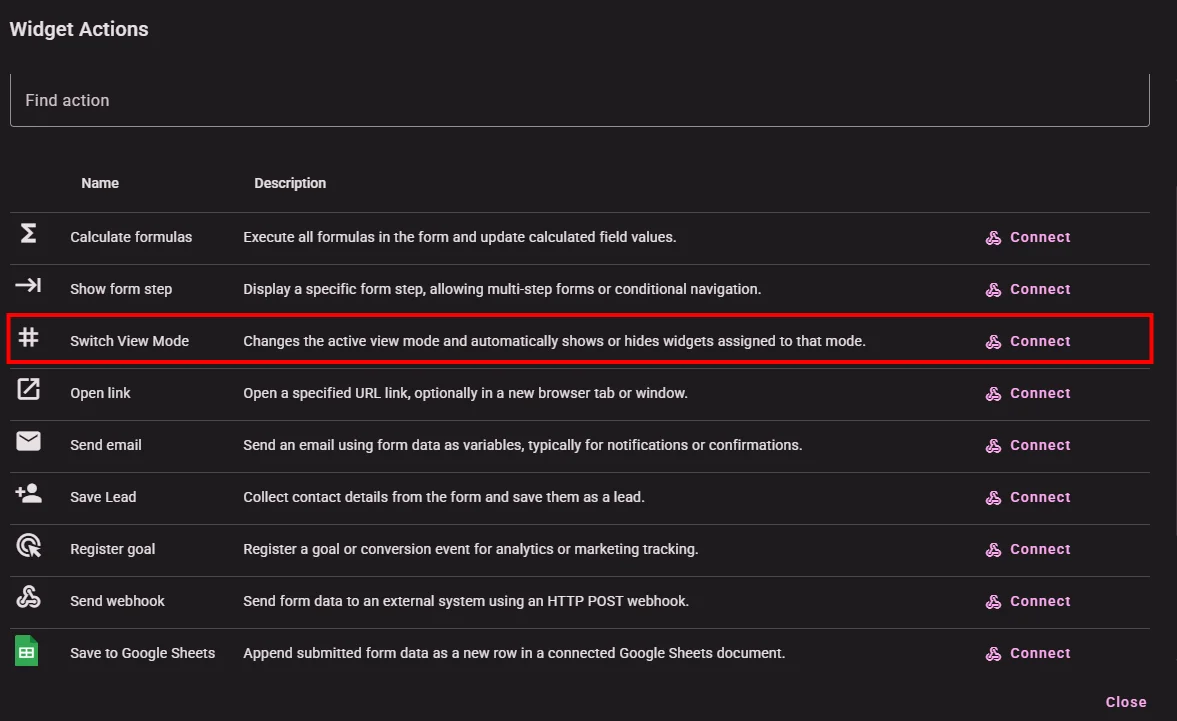
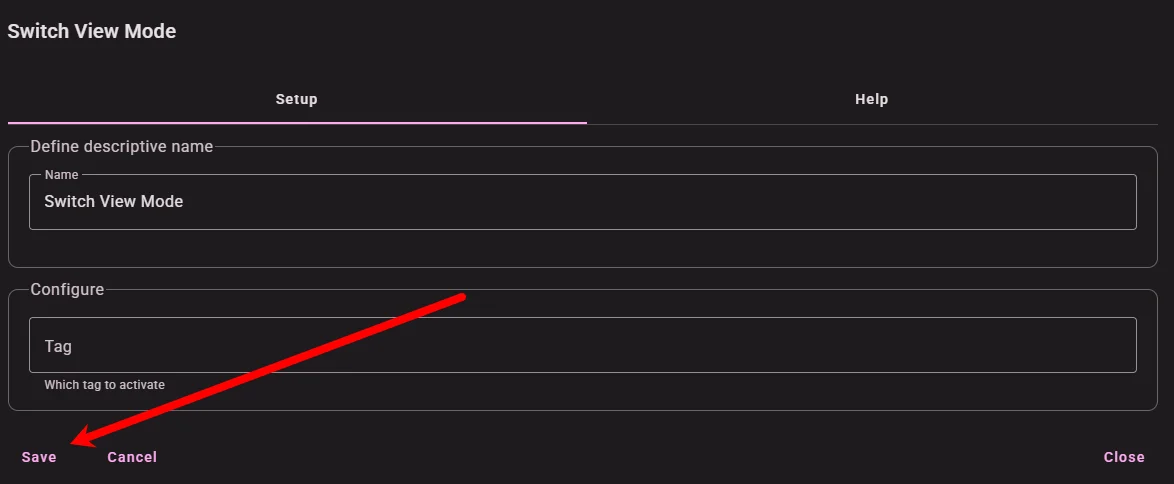
- Find Toggle View Mode and click Connect.
Calcopolis sets the active View Mode to the selected option Value (basic or advanced). No tag configuration is needed.
5. Hide Advanced fields in Basic mode
For Extra costs and Discount:
- Select the widget.
- Expand Visibility → set Show to
Conditionally. - In Active mode is:, type
advanced— must match the radio Value, not the label.
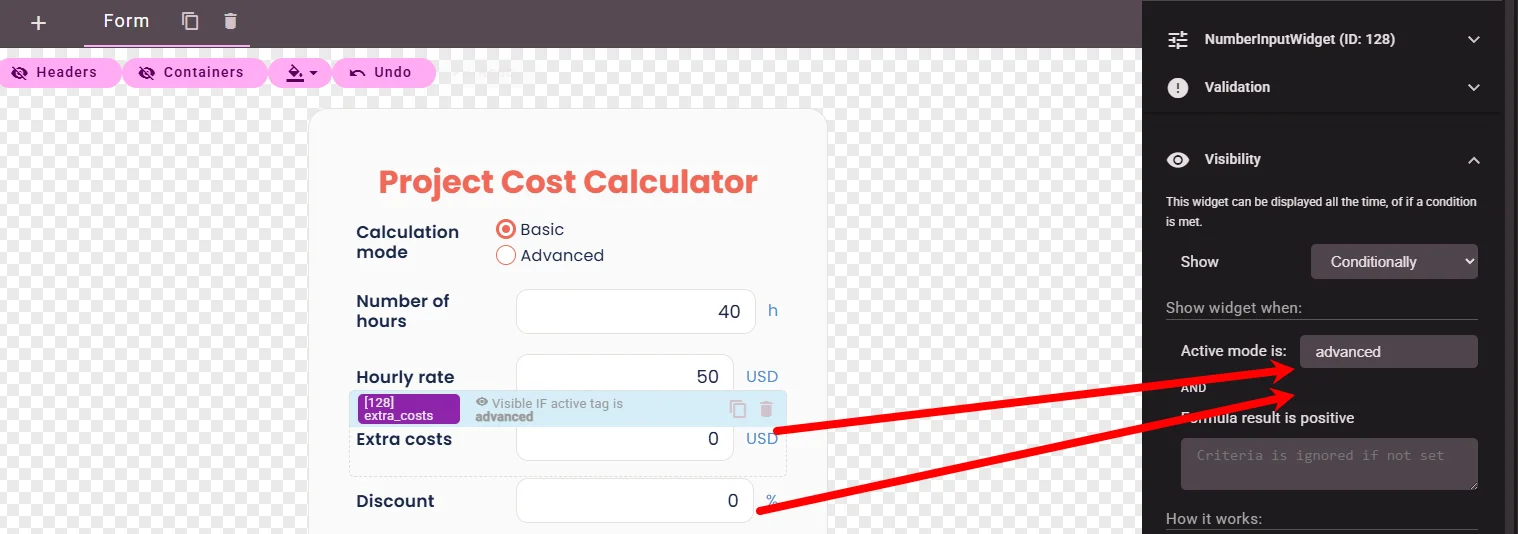
Repeat for Discount.
6. Add the total (one Result widget)
Add a Result widget from Elements → Results Widgets → Result:
| Name | Label | Format |
|---|---|---|
total |
Total project cost |
Currency → $ (USD) |
Basic mode is a single product:
total = hours * hourly_rate
Advanced mode adds extra costs and a percentage discount. Write it as one formula that references only the input Name values — hours, hourly_rate, extra_costs, discount_percent, and calc_mode:
= if(
  calc_mode == "advanced",
  (hours * hourly_rate + extra_costs) - (hours * hourly_rate + extra_costs) * discount_percent / 100,
  hours * hourly_rate
)
In Basic mode, extra_costs and discount_percent stay hidden; the if() branch returns hours * hourly_rate. In Advanced, the same formula adds extra costs and applies the discount percentage.
7. Set the initial View Mode and auto-calculate
- In the builder toolbar, click Options.
- Under Initialization:
- Active view mode →
basic - On init → Run calculation on load
- Click Save as draft.
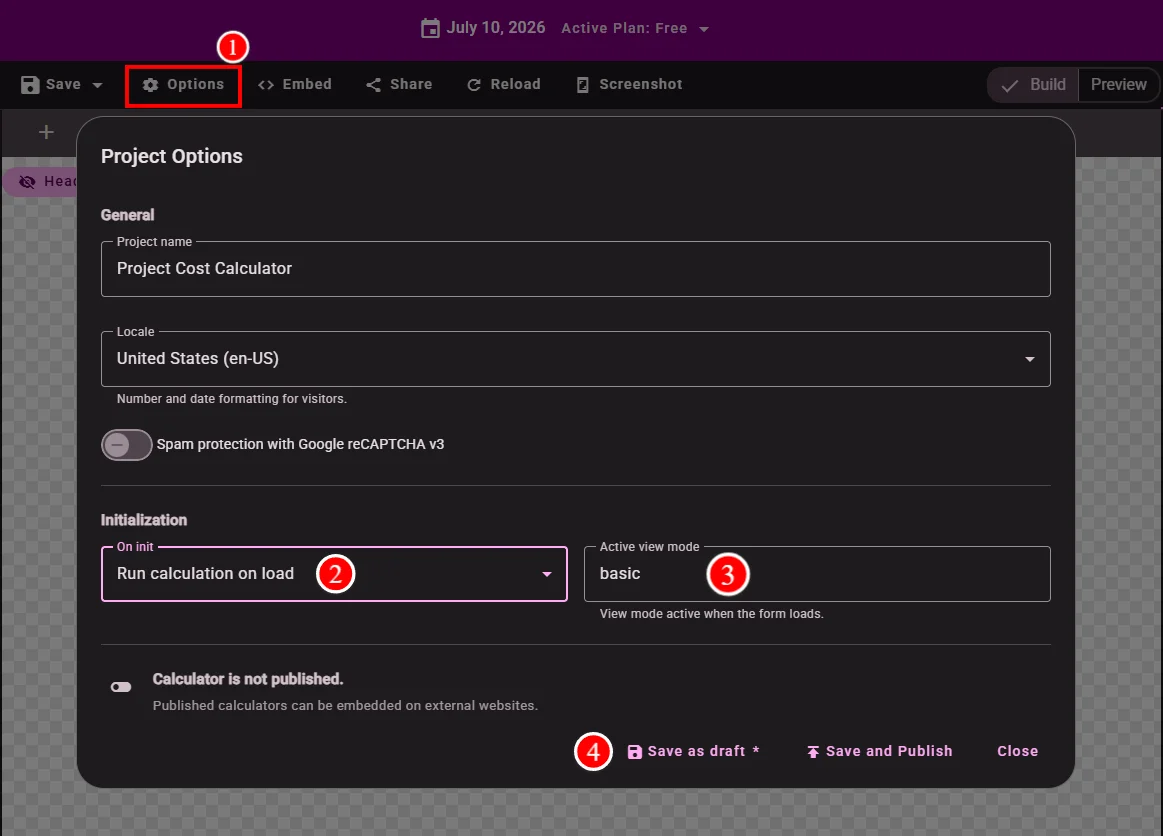
8. Recalculate when inputs change
Select Number of hours. Under On Change, add Calculate.
Repeat for Hourly rate, Extra costs, and Discount — so totals and visibility messages stay in sync.
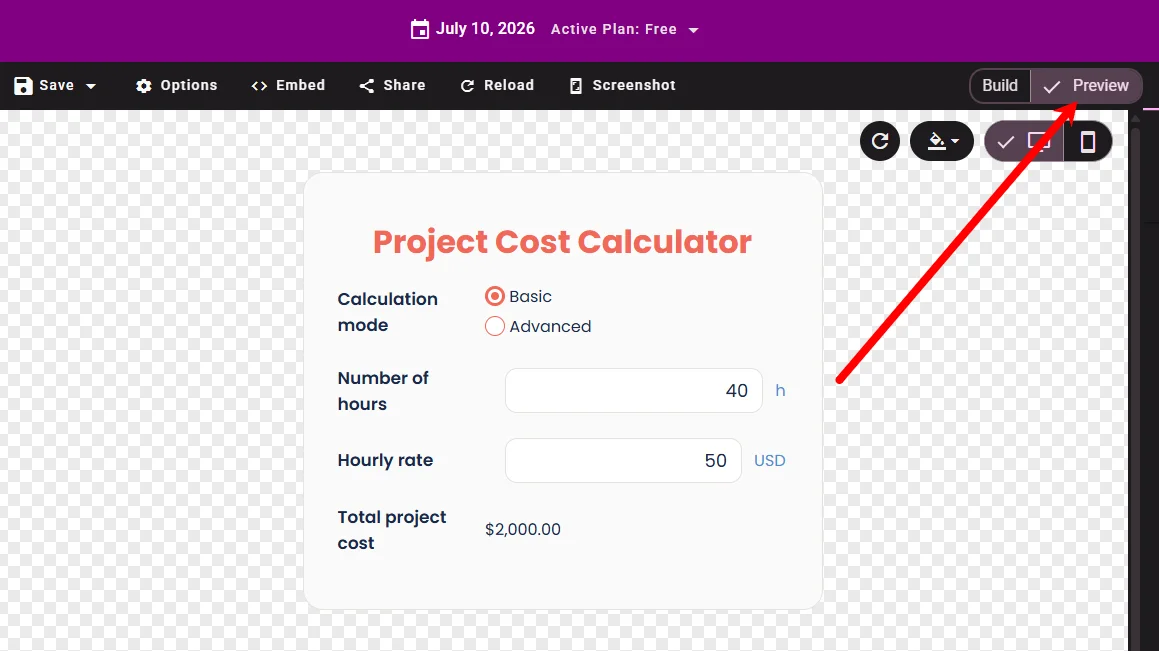
9. Test in Preview
- Switch to Preview.
- Basic — only hours and hourly rate; Extra costs and Discount hidden.
- Select Advanced — both extra fields appear; change Discount to
10and confirm Total updates. - Switch back to Basic — advanced fields hide; Total falls back to
hours × hourly_rate.
Part 2 — Show a discount hint above $2,000 (formula)
Show a short note when the project value (hours × hourly rate, before extras) exceeds $2,000 — letting visitors know a volume discount may apply.
1. Add the message
Add Custom Text with:
Volume discounts may apply when the project value exceeds $2,000.
Place it below the inputs and above Total project cost.
2. Set formula visibility
- Select the text widget.
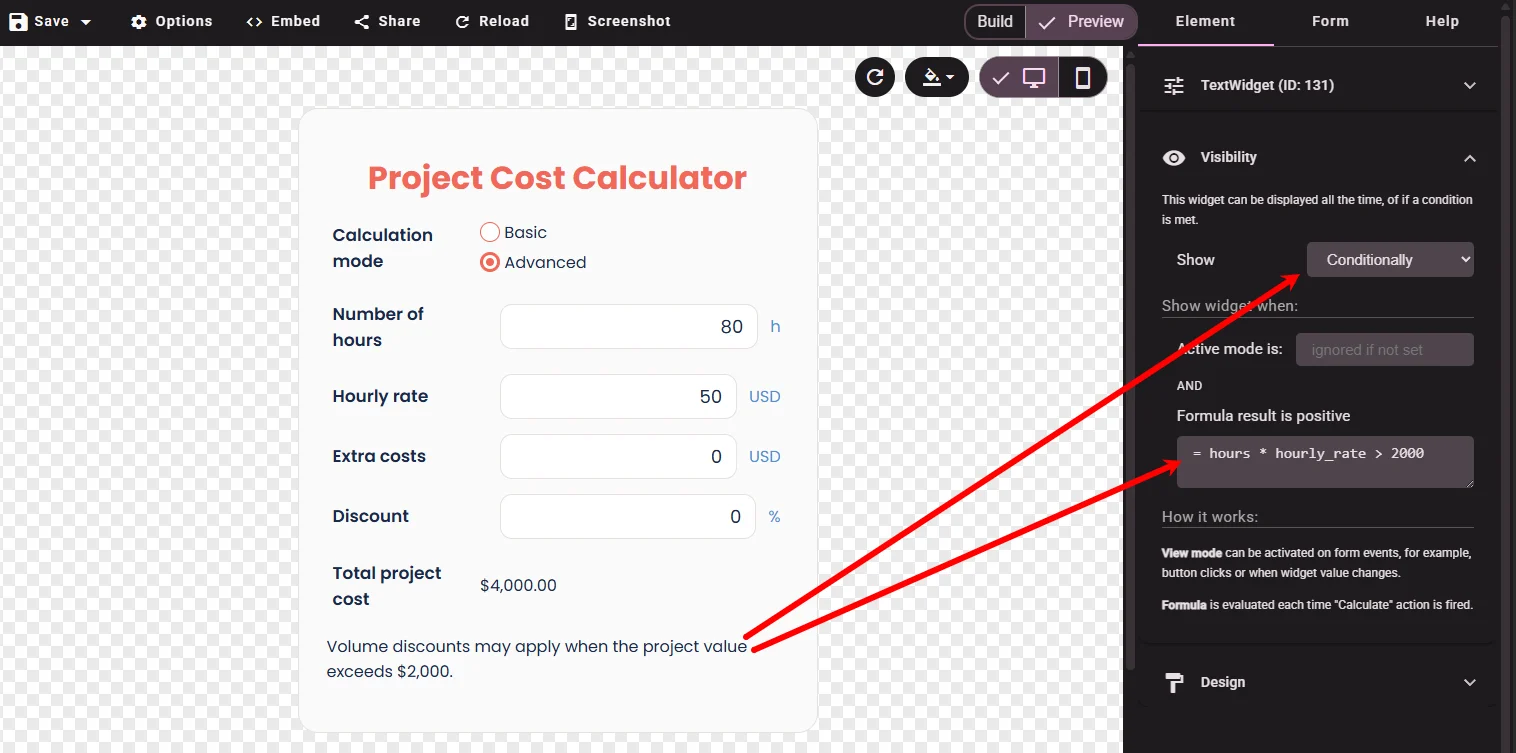
- Expand Visibility → Show →
Conditionally. - Leave Active mode is: empty.
- In Formula result is positive, enter:
= hours * hourly_rate > 2000
The message appears only when labor cost alone is above $2,000 (e.g. 40 h × $50 = $2,000 — not shown; 50 h × $50 = $2,500 — shown).
3. Test
In Preview, try:
| Hours | Hourly rate | Message |
|---|---|---|
30 |
50 |
Hidden ($1,500) |
50 |
50 |
Visible ($2,500) |
The hint works in Basic and Advanced — it depends on hours and rate, not on the mode selector.
Verify
| Check | Expected result |
|---|---|
| Basic on load | Hours, hourly rate, and total only |
| Select Advanced | Extra costs and discount inputs appear |
| Total in Basic | hours × hourly_rate |
| Total in Advanced | (hours × hourly_rate + extra_costs) − discount% |
hours × hourly_rate ≤ 2000 |
Discount hint hidden |
hours × hourly_rate > 2000 |
Discount hint visible |
In Build mode, the canvas toolbar shows Active mode: toggles when the form uses View Modes — handy for checking visibility without Preview.
Troubleshooting
| Problem | Solution |
|---|---|
| Advanced fields always visible | Show must be Conditionally; Active mode is: must be advanced (lowercase). |
| Advanced fields never appear | Add Toggle View Mode on the radio On Change. |
| Wrong fields on first load | Options → Active view mode → basic. |
| Total wrong in Advanced | Paste the full if() formula; every name must match input Name fields exactly. |
| Discount hint never shows | Add Calculate on input On Change; set On init → Calculate. |
| Hint shows at exactly $2,000 | Formula uses > 2000 (strictly greater). Use >= 2000 if you want $2,000 included. |
See also
- Building Your First Calculator — quotes, results, and leads
- Understanding Formulas and Variables —
IF()and variable order - Radio — On Change and Visibility
- Result — currency formatting
- if() Function — branch formulas by mode