Formulas turn static forms into real calculators. Once you understand how variables and the = syntax work, you can build quotes, discounts, loan estimates, and conditional logic — without leaving the builder.
This guide explains the mental model, where to edit formulas in the UI, when to use standalone variables, and the formula language itself with practical examples.
The core idea
Every widget that has a Name field contributes a variable to your project.
That variable can hold:
| Value type | How you set it | Example |
|---|---|---|
| Fixed number | Type a number in Value | 5 |
| Fixed text | Type text in Value | Standard |
| Formula | Start Value with = |
= hours * rate |
When a value starts with =, Calcopolis treats it as a formula and recalculates it whenever inputs change (after you run Calculate or enable Run calculation on load in project Options).
Important: formulas reference the widget Name, not the label shown to visitors. If Name is avg_length and Label is Average length, the formula must use avg_length.
A minimal example
Two inputs and one result — the pattern behind most calculators:
| Widget | Name | Value |
|---|---|---|
| Form Widgets → Number | hours |
2 |
| Form Widgets → Number | rate |
50 |
| Results Widgets → Result | total |
= hours * rate |
When the visitor changes hours or rate, total becomes 100 (2 × 50). You already used this pattern in Building Your First Calculator with avg_length, num_videos, and estimated_quote.
Where to edit formulas
There are three places in the builder — you will use all of them sooner or later.
1. Widget editor — Value field
- Select a widget on the canvas (e.g. a Result widget).
- Open the Element tab in the right sidebar.
- Find the Value field — it becomes Formula automatically when the content starts with
=. - Type directly, or click Formula Editor for a larger workspace with variable picker and preview.
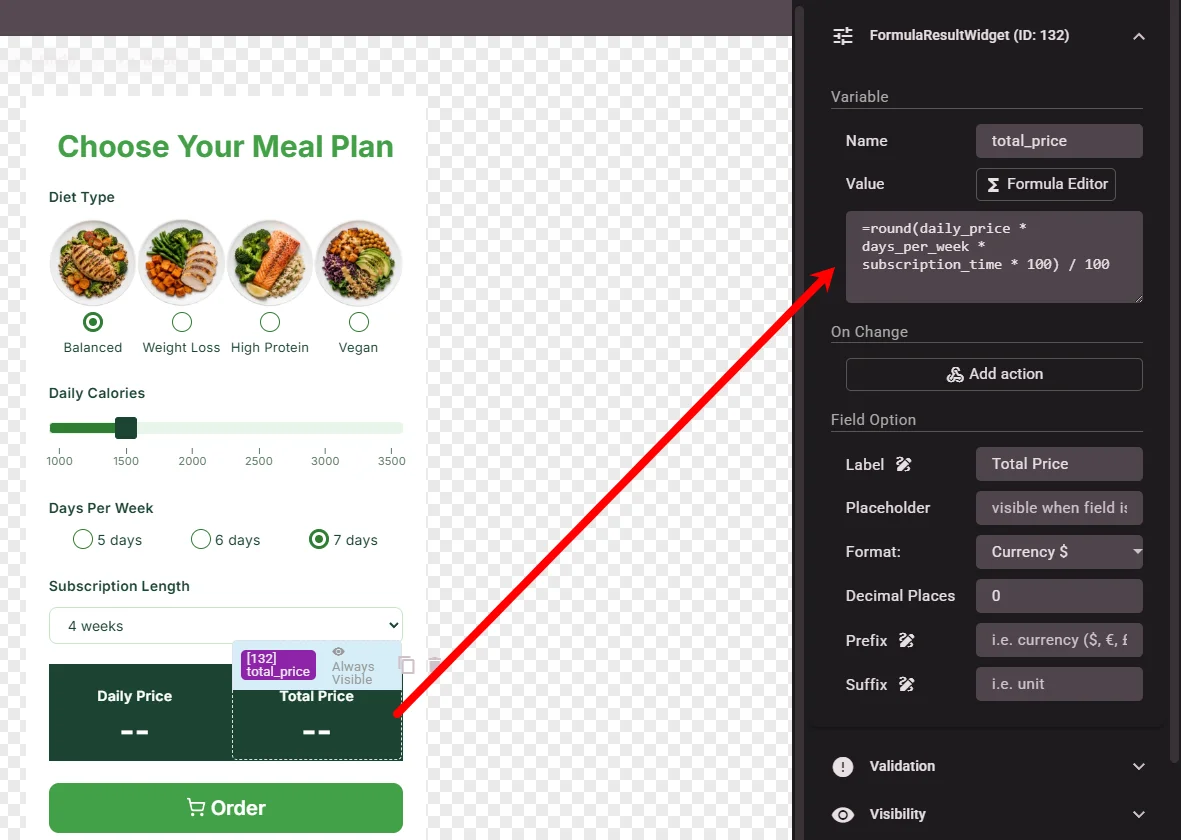 Figure 1 — Edit a formula on the selected widget
2. Variables list
The left sidebar has an Elements / Variables tab pair. Switch to Variables to see every name in the project — from widgets and from standalone variables.
- Click a row to expand and edit Name or Value / Formula.
- Use Open editor to launch the Formula Editor for that variable.
- Click New Variable to add a variable not tied to any widget (covered below).
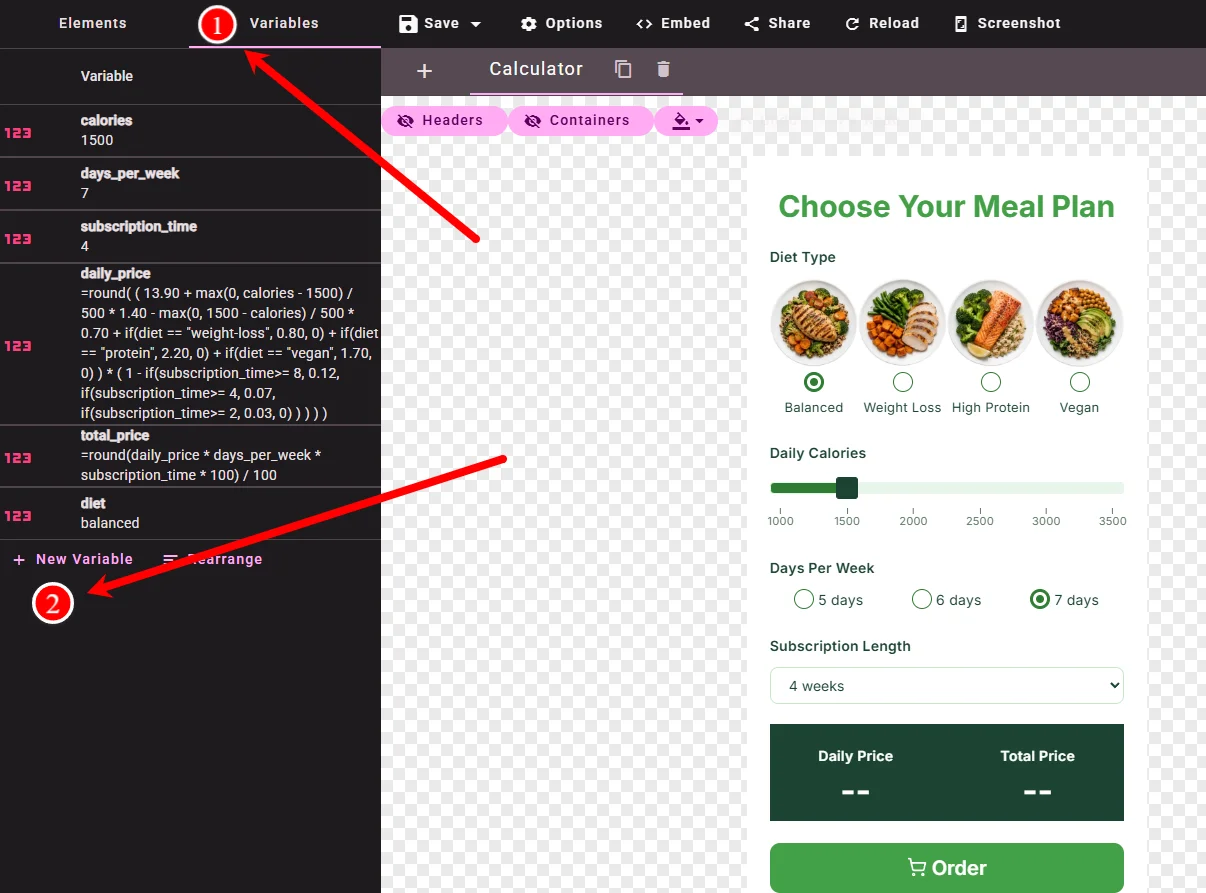 Figure 2 — Overview of all variables in one place
3. Formula Editor dialog
Opened via Formula Editor (widget) or Open editor (variable). Use it when formulas grow beyond a one-liner.
- Left: formula textarea, live Preview, chips for common operators and functions.
- Right — Variables tab: click a name to insert it into the formula.
- Right — Help tab: built-in reference for operators, functions, and constants.
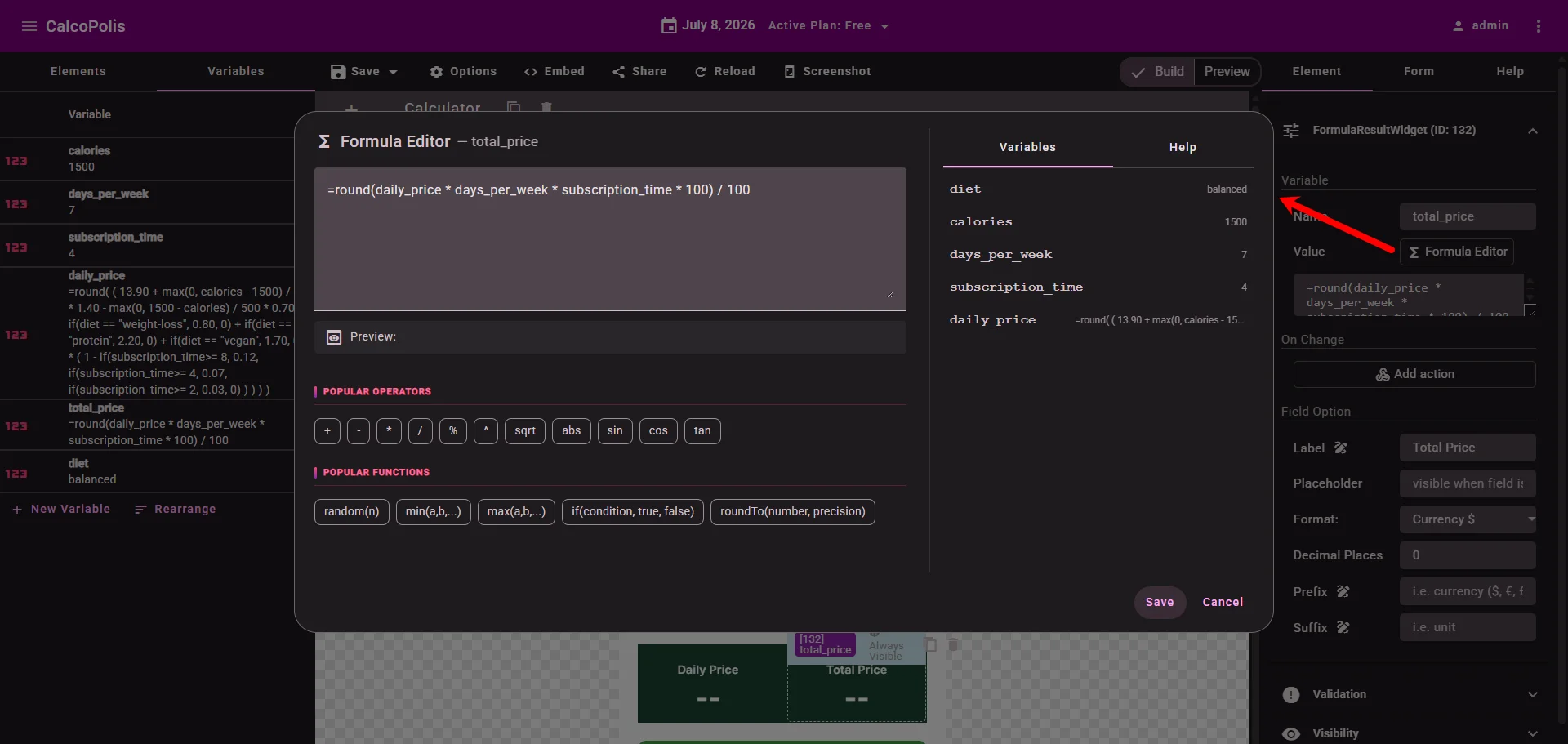 Figure 3 — Formula Editor with preview and variable insertion
Standalone variables (not tied to a widget)
Some values should not appear as input fields. Create them via Variables → New Variable:
| Use case | Example name | Example value |
|---|---|---|
| Config constant | tax_rate |
= 0.23 |
| Helper / intermediate | subtotal |
= qty * unit_price |
| Fixed fee added everywhere | setup_fee |
= 99 |
A Result widget can then stay readable:
= subtotal * (1 + tax_rate) + setup_fee
instead of one long expression with every input repeated.
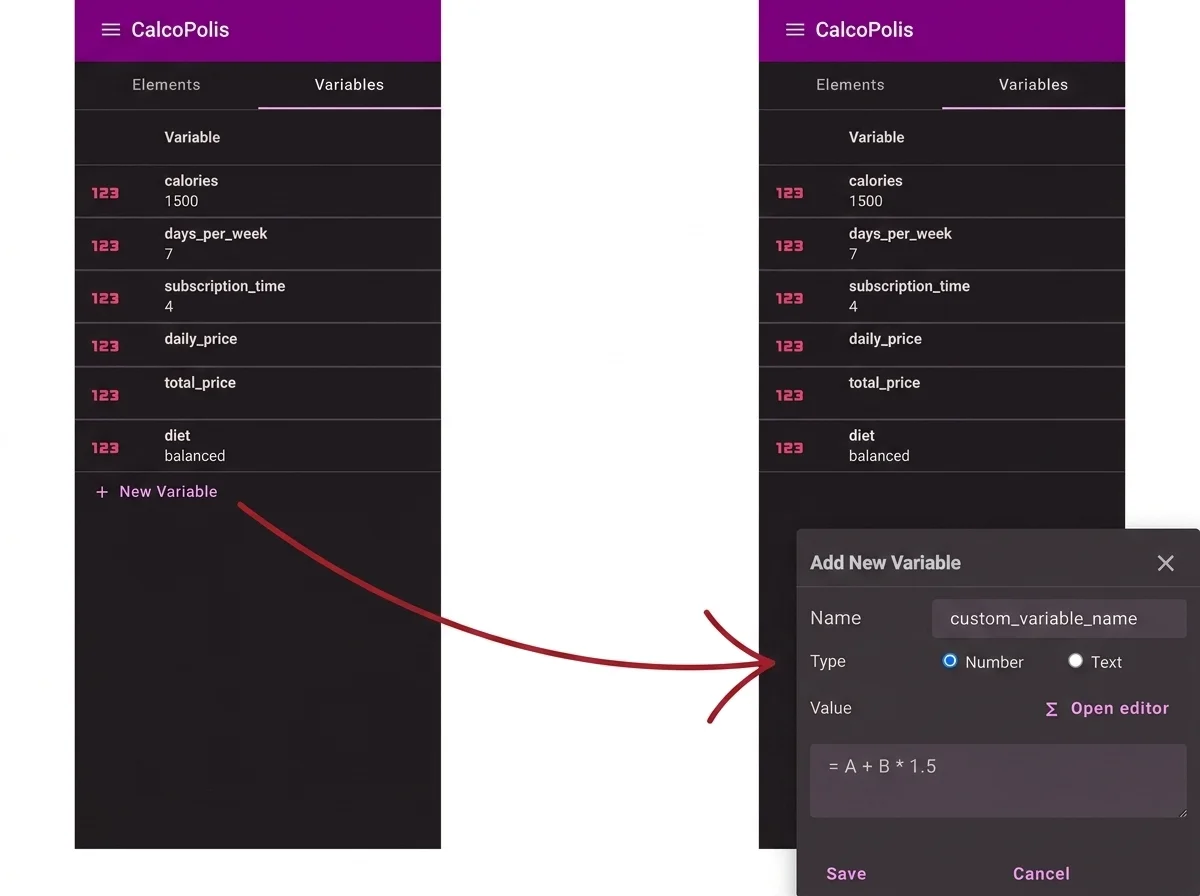 Figure 4 — A config variable separate from visible widgets
Tip: Define helper variables before results that depend on them. If a formula references a name that is not calculated yet, the preview may show an error until evaluation order is correct. Use Rearrange on the Variables tab if needed.
Formula syntax
Every calculation formula must start with =. Everything after that follows standard calculator-style syntax.
Numbers and variable names
= 10 + 5
= price * quantity
= (price - discount) * quantity
Variable names use letters, digits, and underscores (unit_price, qty2). They are case-sensitive.
Arithmetic operators
| Operator | Meaning | Example |
|---|---|---|
+ |
Add | = a + b |
- |
Subtract | = total - discount |
* |
Multiply | = hours * rate |
/ |
Divide | = total / count |
^ |
Power | = base ^ 2 |
( ) |
Grouping | = (a + b) * tax_rate |
Comparisons (for logic and visibility)
| Operator | Example |
|---|---|
> < >= <= |
= amount > 1000 |
== != |
= status == 1 |
Combine with and / or:
= amount > 0 and qty > 0
= plan == "pro" or plan == "agency"
Use comparisons in visibility formulas (widget Element tab → Visibility → Formula) to show or hide sections when a condition is true.
Practical examples
Line total
Result widget line_total:
= qty * unit_price
10% discount when quantity is 10 or more
Result widget you_pay:
= qty * unit_price * (1 - (qty >= 10) * 0.1)
The part (qty >= 10) evaluates to 1 when true and 0 when false, so the discount applies only above the threshold.
Markup percentage
Number input markup_pct (visitor enters 30 for 30%). Standalone variable cost = = 100 (or link to another widget). Result:
= cost * (1 + markup_pct / 100)
Sum of checkbox selections
Checkbox widgets produce an array. Use sum():
= sum(selected_options)
Per-minute quote (from the first-calculator tutorial)
= avg_length * num_videos * 25
Replace 25 with a standalone variable rate_per_minute when you want one place to update pricing.
Built-in functions (common)
| Function | Purpose | Example |
|---|---|---|
sum(array) |
Add checkbox values | = sum(extras) |
timeToSec(text) |
"01:30" → seconds |
= timeToSec(duration) |
secToTime(n) |
seconds → "HH:MM:SS" |
= secToTime(total_sec) |
loanInstallmentAmount(...) |
Loan payment | See mortgage-style calculators |
Open Formula Editor → Help → Functions for the full list and parameter order. Loan functions expect interest as a decimal (0.05 for 5%, often interest_rate / 100).
Formatting the displayed result
Formulas compute numbers. Formatting is separate:
| Goal | Where |
|---|---|
| Currency on a Result widget | Element tab → Format → e.g. CURRENCY_USD, set Decimal places |
| Mixed text + numbers | Content Widgets → Custom Text with templates: {{ total \| currency:2:USD }} |
| Percent | Result → Format → PERCENT |
Do not put {{ }} templates inside a Result widget formula — use = math there and templates only in text widgets.
How evaluation works (short)
- Visitor changes an input → variable updates.
- Calculate runs (button or Run calculation on load).
- Standalone variables evaluate in order.
- Widget formulas (especially Result) read the latest values.
- Output formats apply for display.
If a result stays empty, check: missing = prefix, wrong variable Name, or a dependency that has not been calculated yet.
Common mistakes
| Mistake | Fix |
|---|---|
Formula without = |
Add = at the start |
| Used label instead of name | Check Name on each widget |
Result shows 0 |
Verify inputs have defaults; run Calculate / enable calculate on load |
{{ price }} in Result widget |
Use = price or move template to Custom Text |
Interest rate as 5 instead of 0.05 |
Divide by 100: rate / 100 in loan formulas |
Next steps
- Building Your First Calculator — full project using formulas and leads
- Show and Hide Fields with Conditional Logic — visibility formulas in practice
- Format Numbers as Currency — display formatting